



Backups and restores
Back up databases and volumes, then download, lock, restore or transfer them.
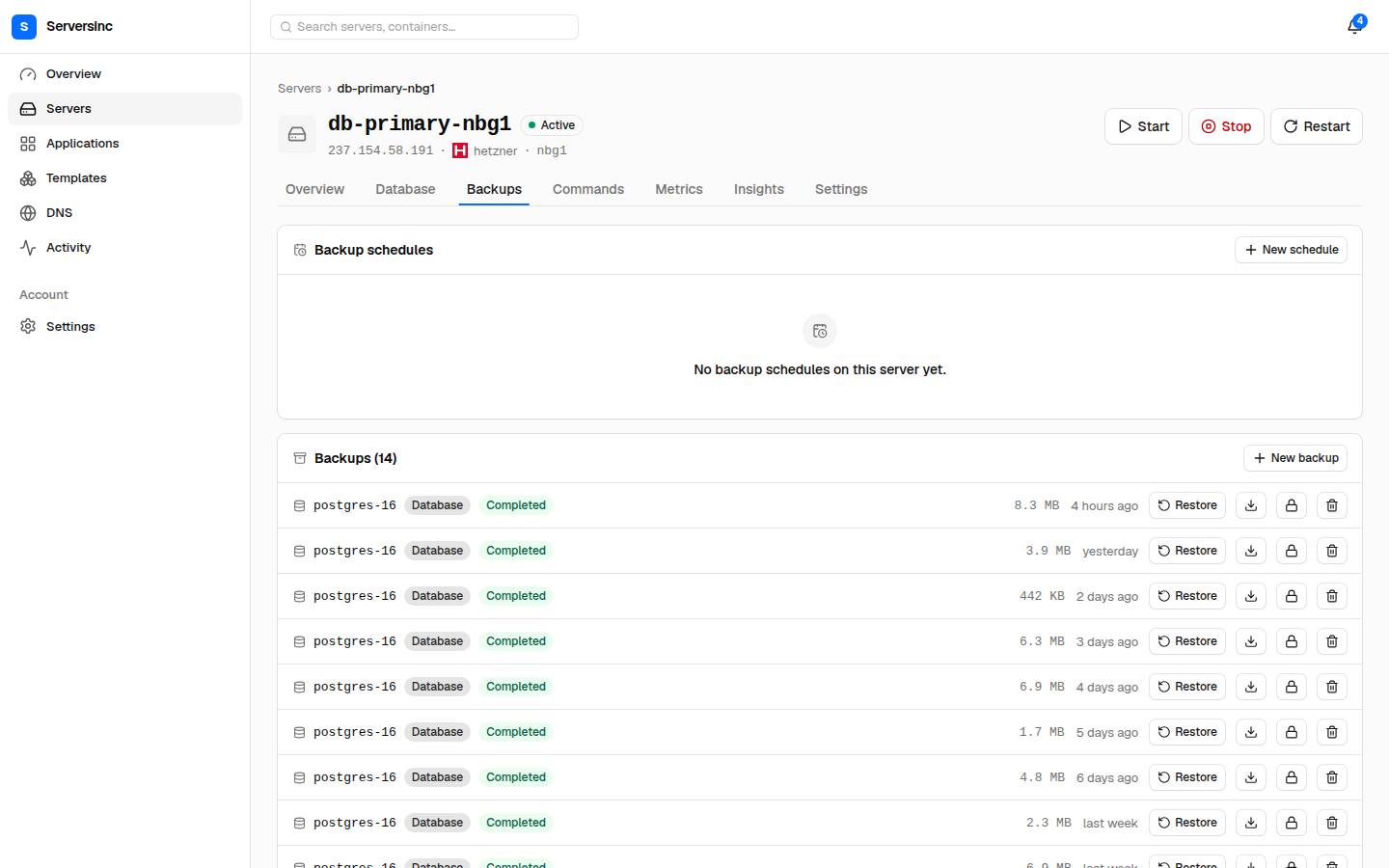
Each backup shows its type, size, age, and a restore action.
Create a backup
Section titled “Create a backup”Before the first backup, add and verify an organisation storage provider under Settings → Providers.
- Open the server and choose Backups.
- Select the database instance or Docker volume to protect.
- For a database, choose the full instance or selected logical databases.
- Choose the destination storage provider.
- Start the backup and follow its status until it completes.
A full database backup may appear as a batch containing one item per logical database plus database-level globals. A volume backup captures the selected named Docker volume reported by the server.
Failed backups record the stage and reason that stopped the operation. Fix the cause and run the backup again.
Verify a backup
Section titled “Verify a backup”Check that a completed backup has a non-zero size and the database or volume scope you expected. For important data, test a restore to a non-production server.
Download, lock, and delete backups
Section titled “Download, lock, and delete backups”A completed backup can produce a download URL that expires after 15 minutes.
Lock a backup or batch to keep retention from pruning it. Unlock it before deletion. Deleting a backup removes both its stored archive and its Serversinc record.
Restore or transfer data
Section titled “Restore or transfer data”- Open a completed backup and choose Restore.
- Select the source server or another server in the same organisation.
- For a database backup, choose a compatible target instance and review target database names.
- For a volume backup, choose the target name and decide whether existing data may be overwritten.
- Start the restore and follow its history to a terminal status.
Serversinc checks the engine and version before a database restore starts. The restore fails if a database with the target name already exists. See Restore rules.
Each backup keeps its restore history, including target, status, and time.
To run backups automatically, see Schedules and retention.